VERSION 1.0

PlanktoSpace:
Comprehensive User Manual

Last Updated: February 2026

Welcome to PlanktoSpace. This application is designed to be your primary decision-support tool for satellite-synchronized marine sampling.

📢 A Note from the Developers

We build this tool specifically for the scientific community. To help us support you better, we have one small request:

Please send us a "Hello!"
When you first install the app, go to the Feedback & Support screen and send a short message with your Name and Institution. This helps us identify your anonymous Device ID in our system, allowing us to prioritize your feature requests and support tickets.

1. The Home Screen

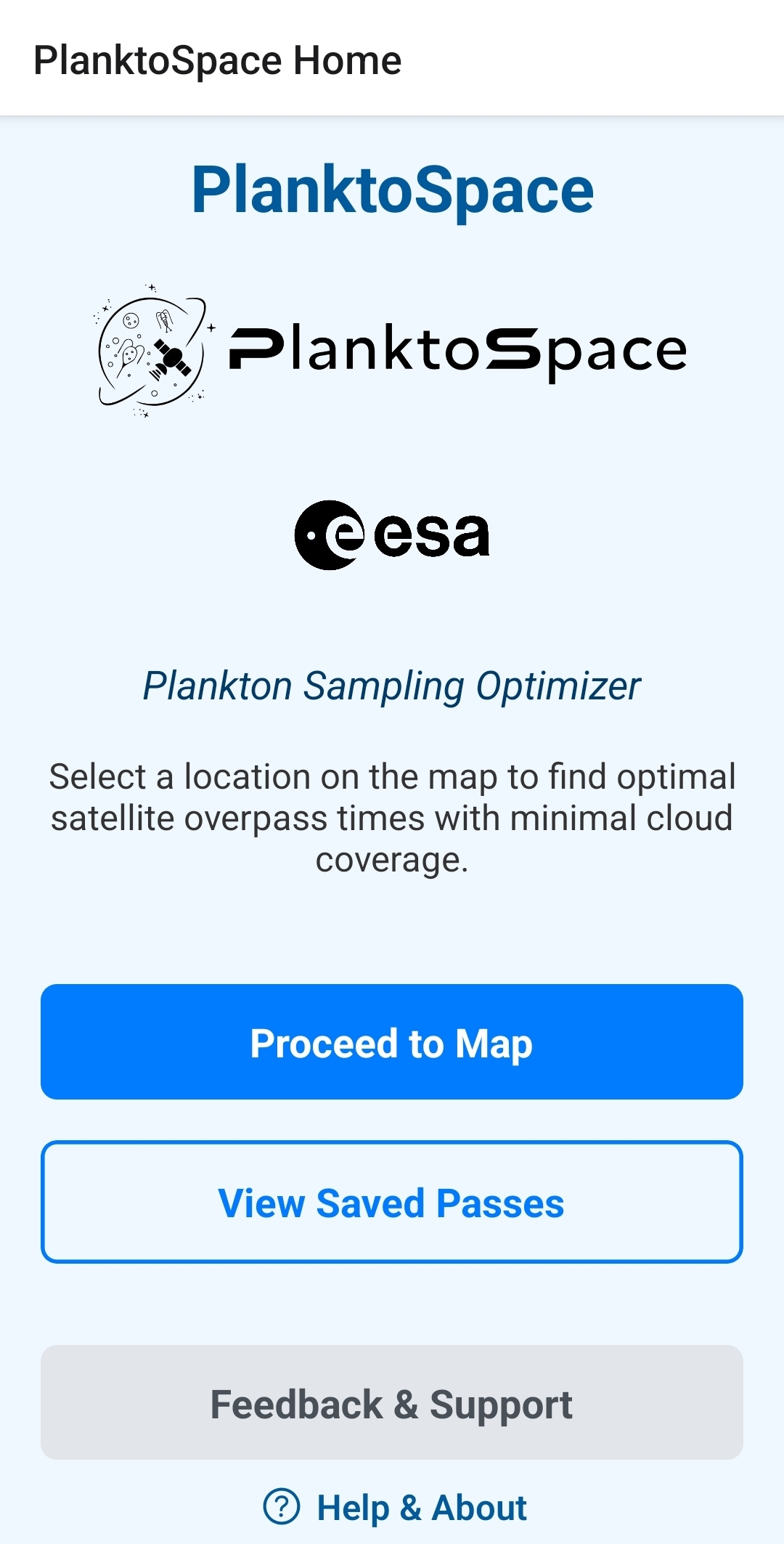
This is your command center.

  • Proceed to Map: Opens the main operational view.
  • View Saved Passes: Access your offline library of selected opportunities.
  • Feedback & Support: A direct chat line to the development team.
    Note: If you see a Red Dot on this button, it means the developers have replied to your previous message.
  • Help & About: Access user guides, legal terms, and system versioning.
Home Screen

2. The Map & Layer Control

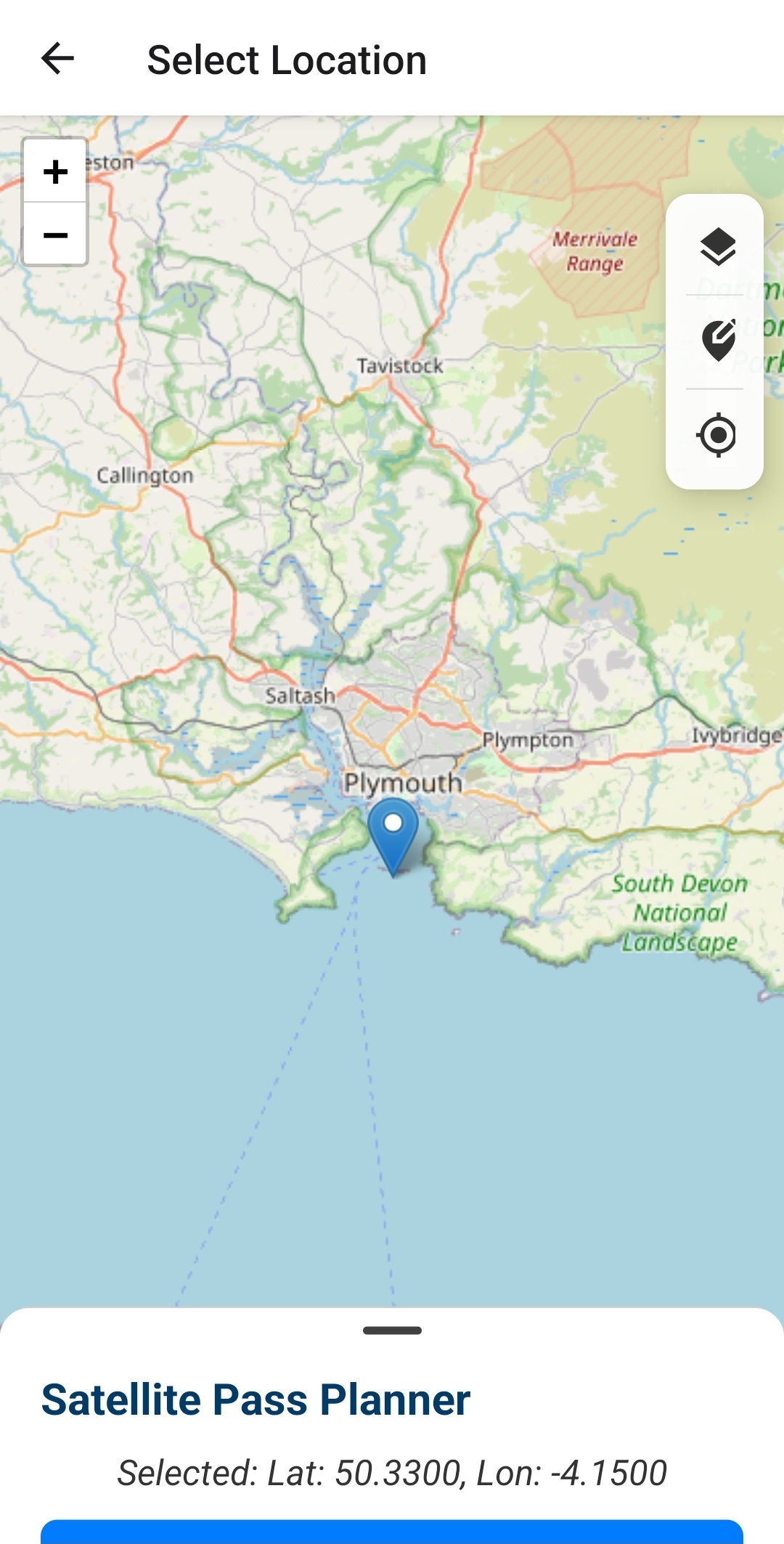
The map is where every search begins. You can navigate using standard pinch-to-zoom gestures.

Map Controls (Top Right)

  • Layers (Stack Icon): Opens the Map Layers menu.
    • Satellite: Esri World Imagery (best for land references).
    • Ocean: Esri Ocean Basemap (shows bathymetry contours).
    • OpenSeaMap: Toggles nautical navigation aids (buoys, lights).
    • No Map: Select this to save data bandwidth at sea.
  • Refine Search (Edit Icon): Opens the detailed search settings (see Section 3).
  • My Location (Target Icon): Snaps the crosshair to your vessel's current GPS position.

Selecting a Target

Tap anywhere on the map to drop a Blue Pin. This is your "Sampling Station." The bottom sheet will popup showing the exact coordinates selected.

Map View

3. Configuring Your Search

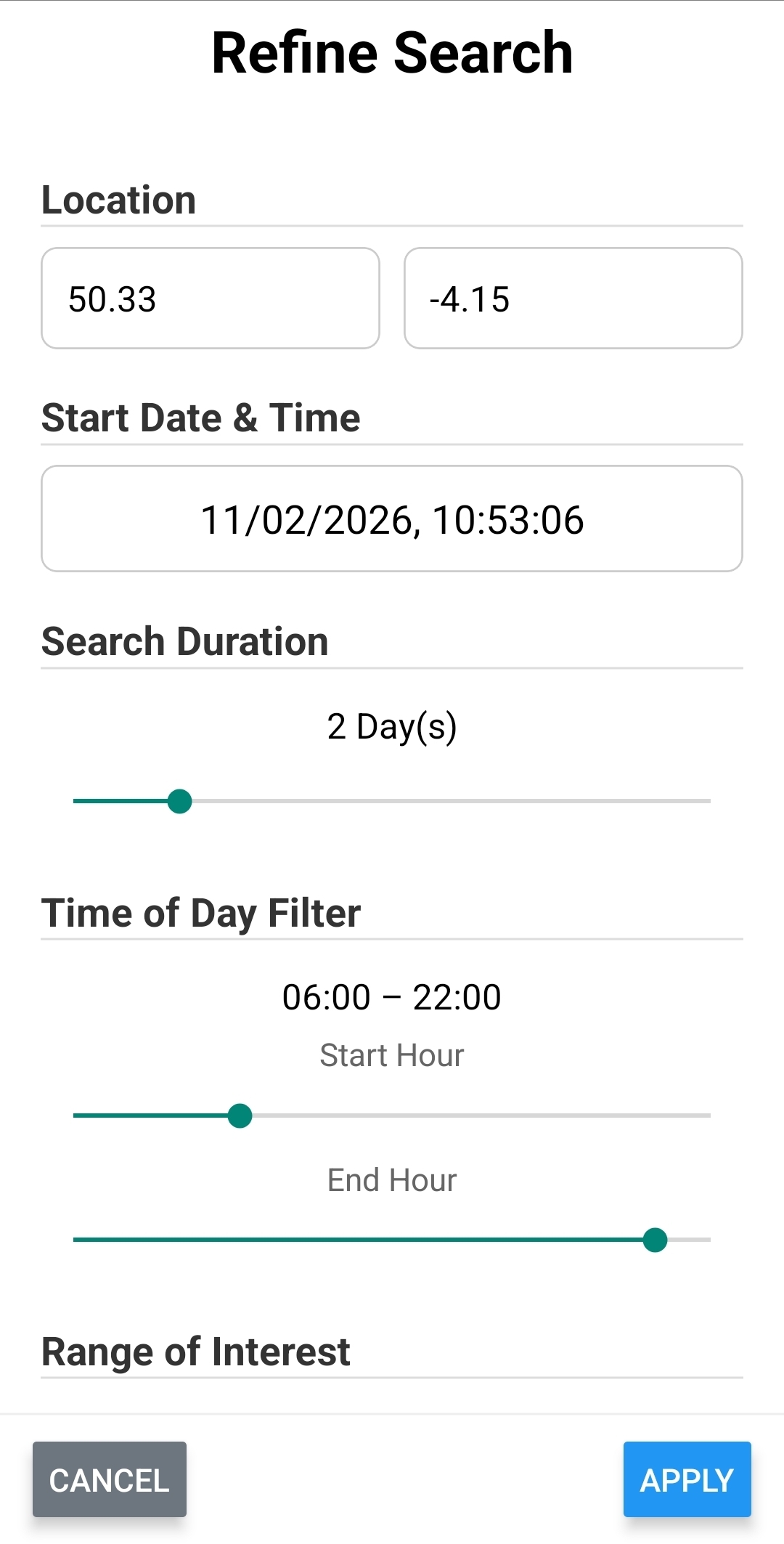
Before checking for satellites, you can customize the engine to suit your mission profile. Tap "Refine Search" (or the Edit icon) to open this menu.

  • Coordinates: You can manually type decimal latitude/longitude here if you have a specific station target.
  • Search Duration: How many days into the future to look (Default: 2 days).
  • Time of Day: Filter passes to your working hours (e.g., 08:00 to 18:00).
    Note: These hours are based on Your Device's Local Time, adjusted for the target location.
  • Range of Interest: Filters passes based on how close the satellite passes to your zenith (overhead).
🚀 Pro Tip: Faster Searching
"Include Chlorophyll Data" Switch:
• ON (Default): The server queries NOAA archives for historical chlorophyll data. This takes ~15-20 seconds.
• OFF: The server skips the oceanographic data and only calculates geometry and weather. This returns results in ~2 seconds. Use this for quick geometric checks.
Refine Settings

4. Understanding Search Results

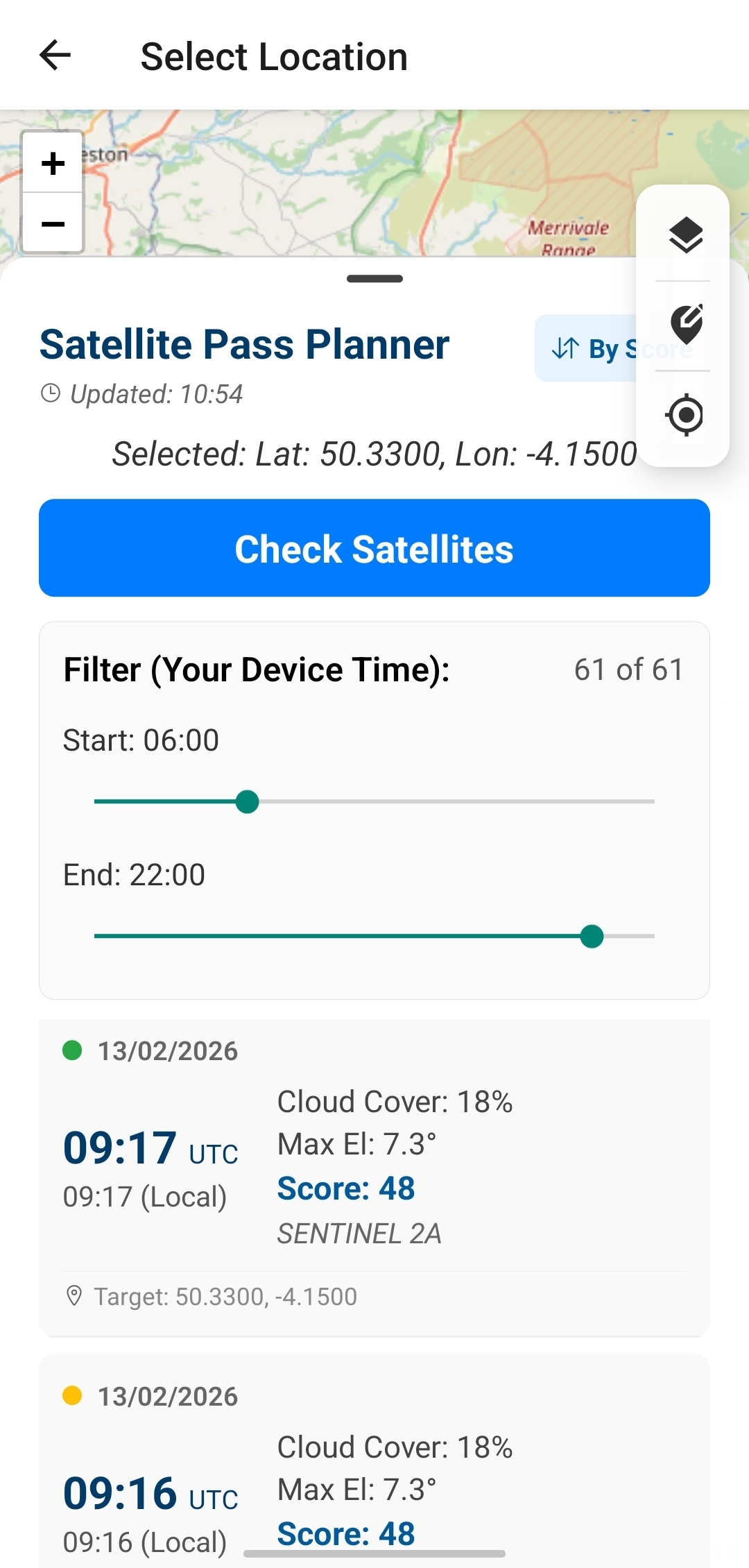
Once you tap "Check Satellites", the results list appears.

The Confidence Indicators (The Dots)

We use a Hybrid Prediction Engine that cross-references multiple sources.

  • Green Dot (High Confidence): Calculated via TLE data AND N2YO API.
  • Amber Dot (Standard Confidence): Found by only one source. Common for newer satellites like Sentinel-2C.

The Opportunity Score

Every pass is graded 0 to 100.

  • 100: Perfect (Overhead, 0% Clouds, Low Wind).
  • 0: Unusable (Horizon pass, 100% Clouds).
Satellite Results

5. Pass Details & External Validation

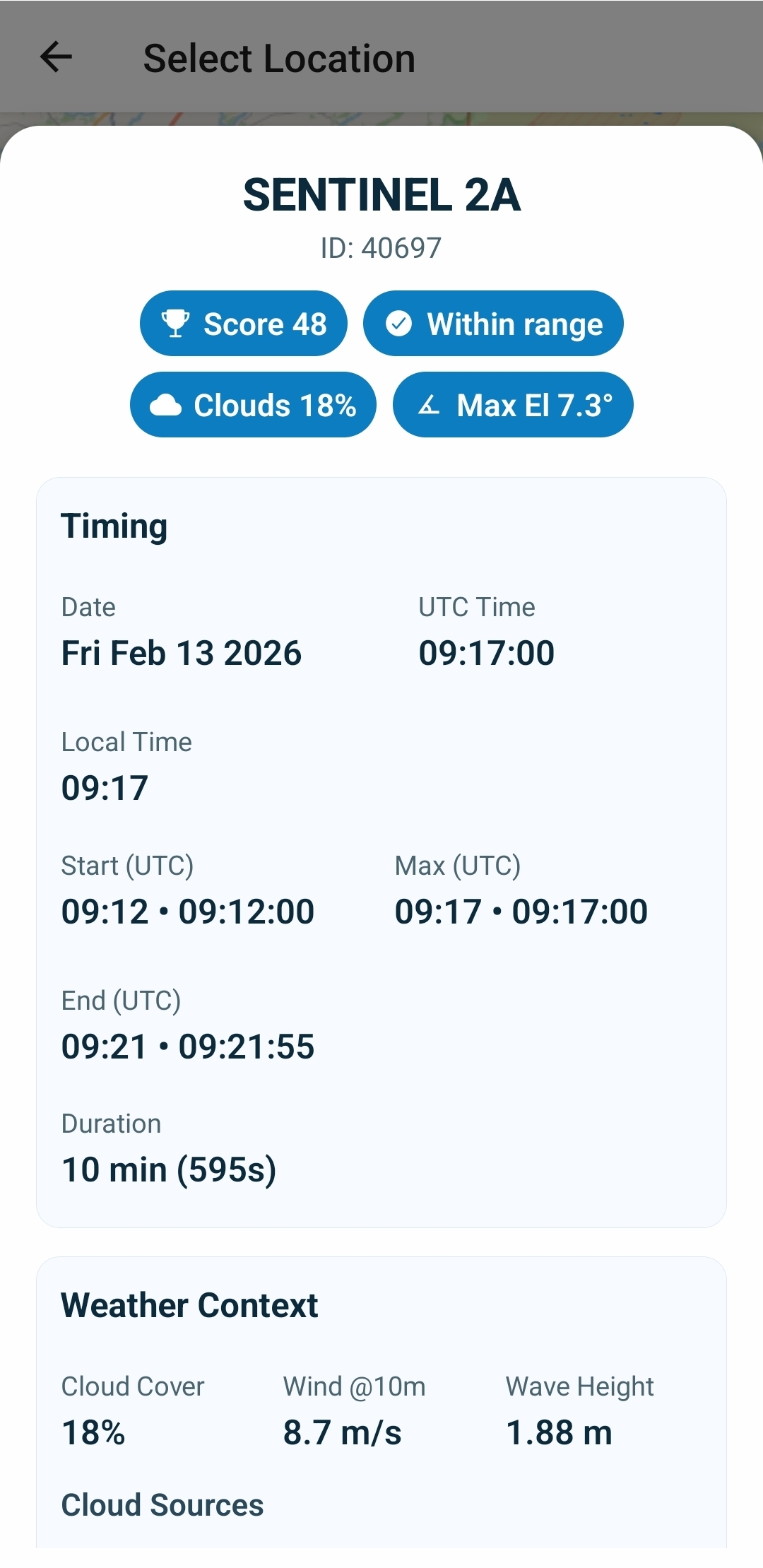
Tap any item in the list to open the Detail View.

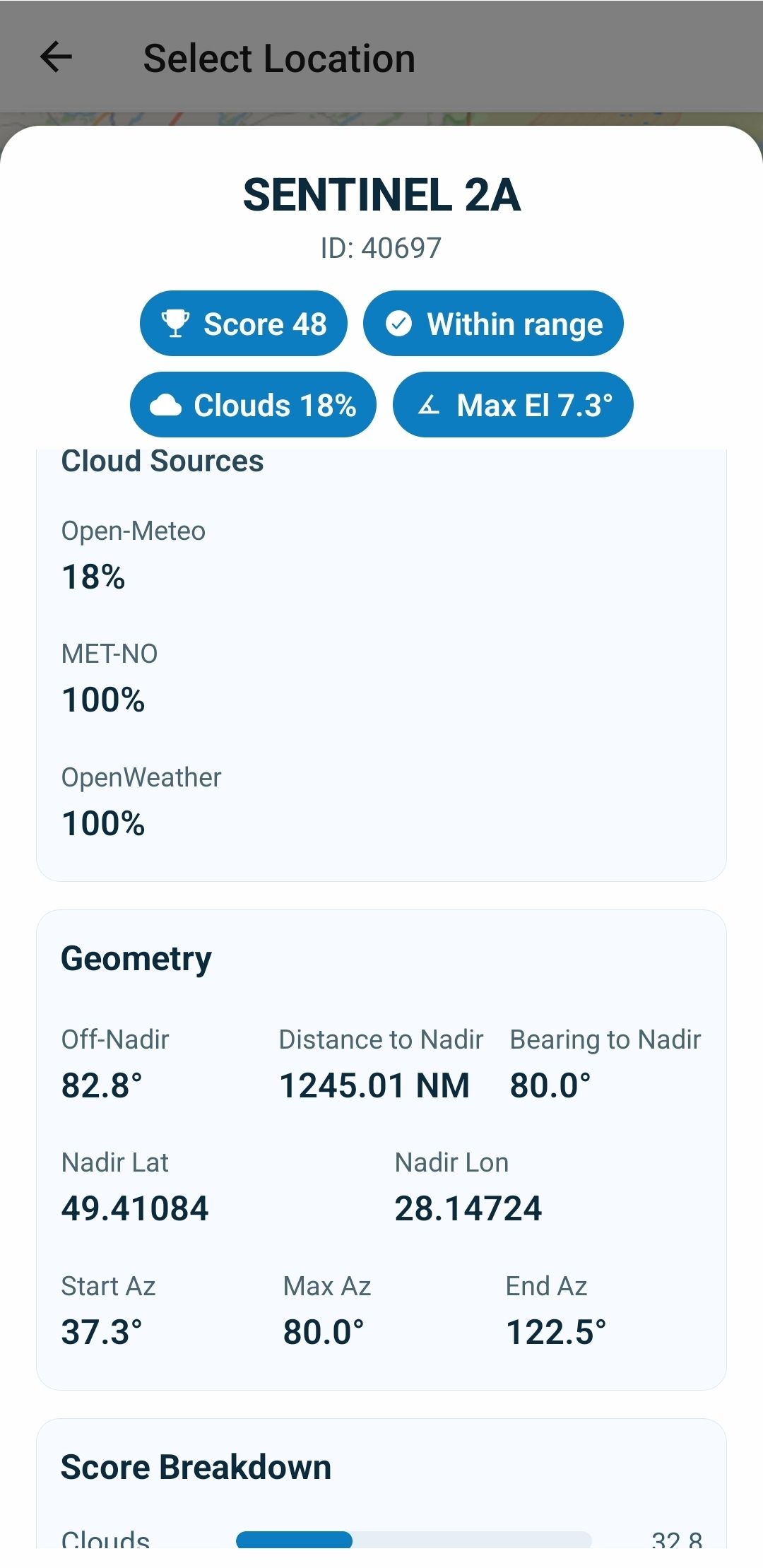
  • Timing: Shows Start, Max Elevation, and End times in UTC and Local Time.
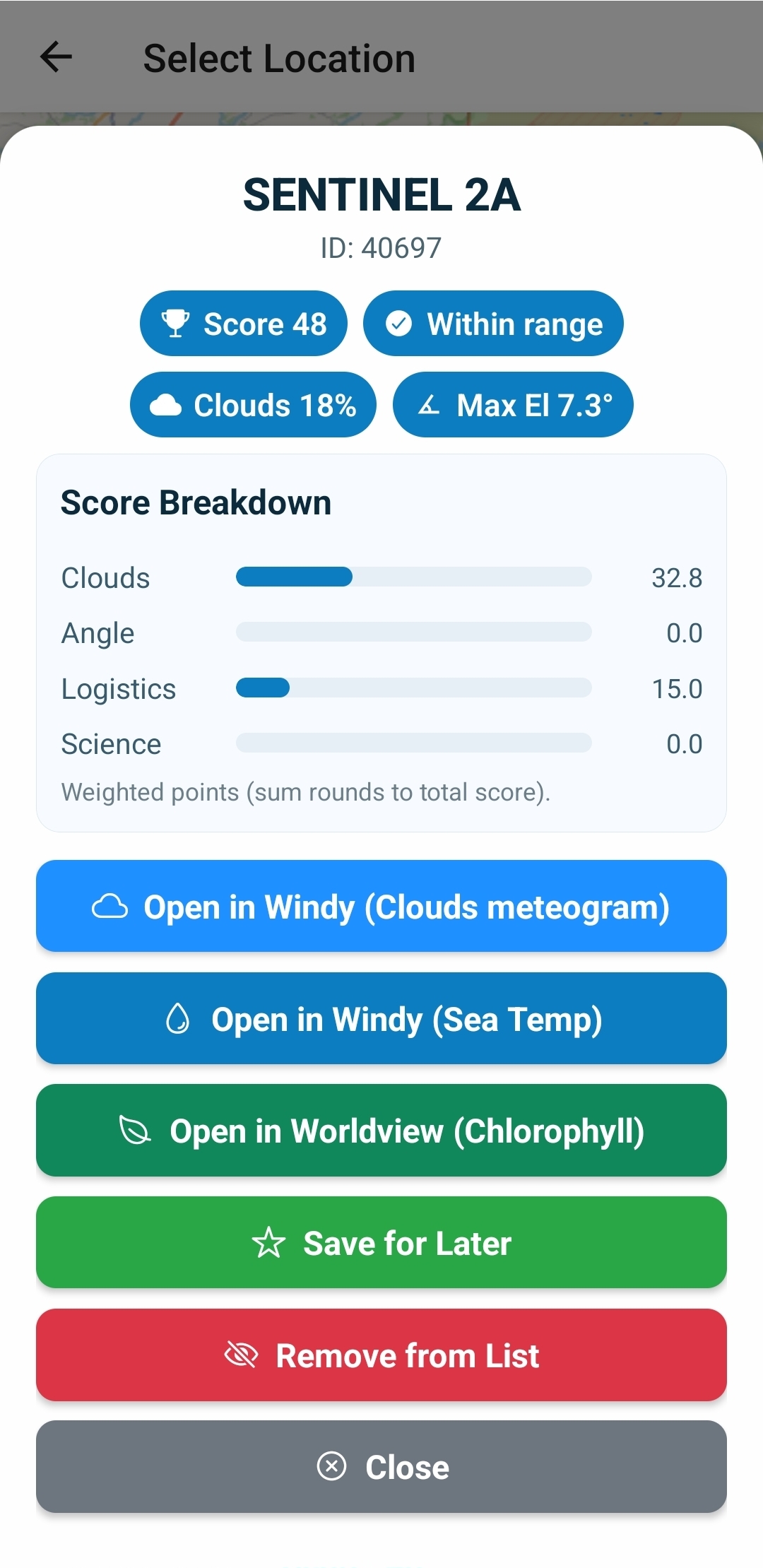
  • Weather Context: Cloud Sources (Open-Meteo, MET Norway, OpenWeatherMap) and Marine data (Wave/Wind).
  • External Links: Opens Windy.com for meteograms or NASA Worldview for visual sensor imagery.
Step 1 Step 2 Step 3

6. Saving & Exporting Data (JSON)

Build a library of opportunities for offline use.

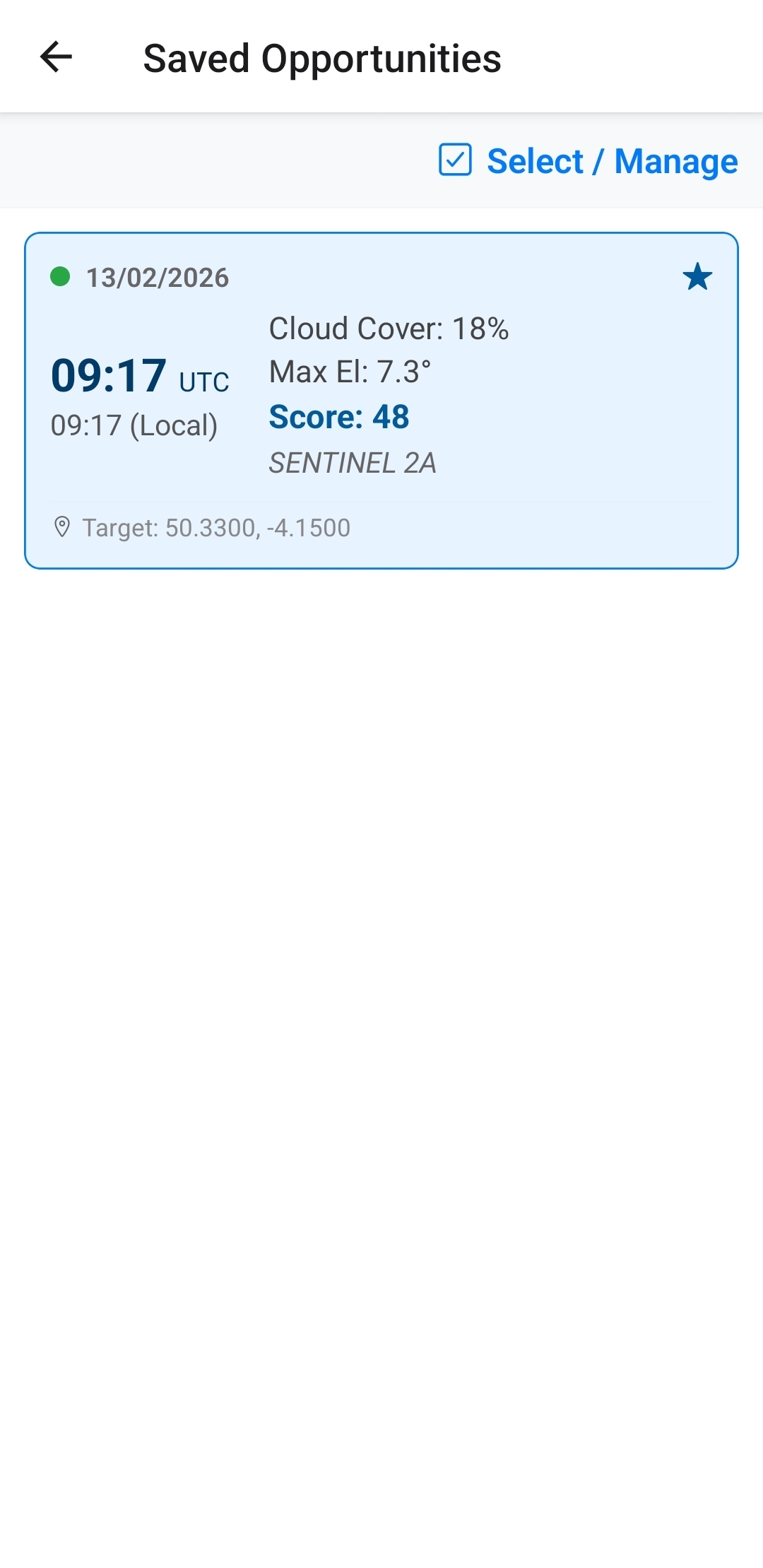
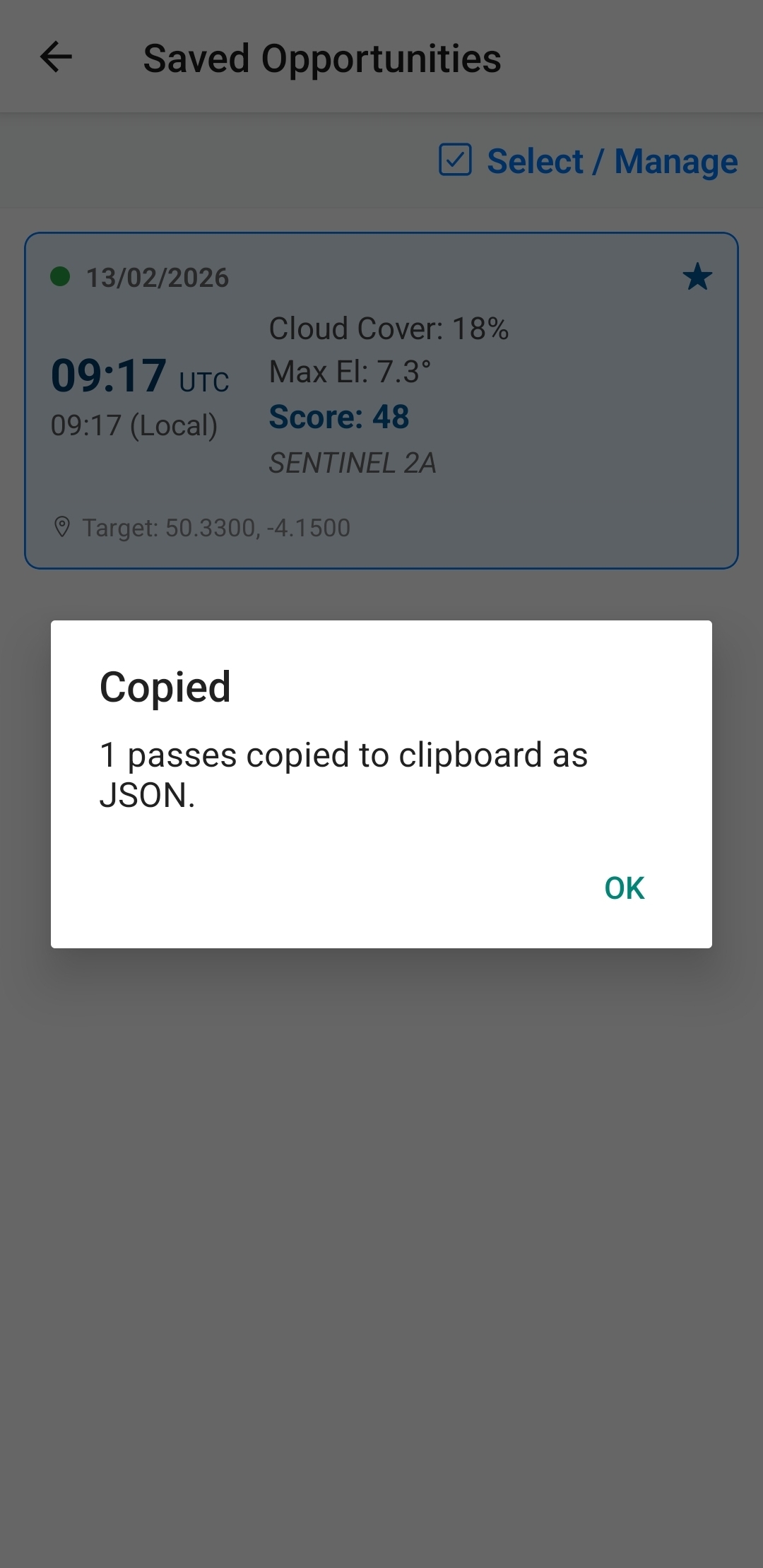
  1. Save: Tap the Star Icon in the list or detail view.
  2. View: Go to "Saved Opportunities" from Home.

How to Export Data

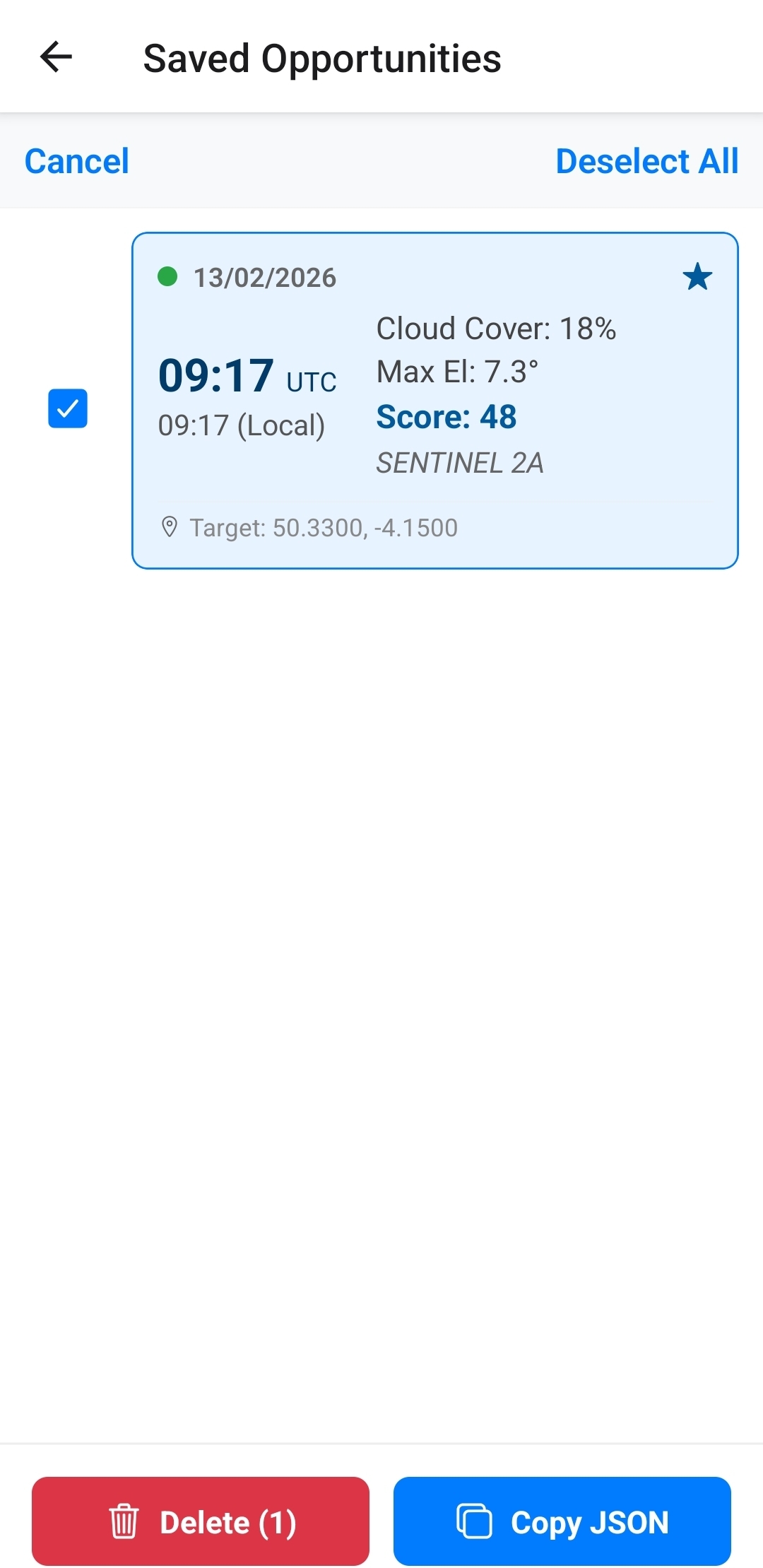
  1. Tap "Select / Manage" in the top right.
  2. Select the passes you want to export.
  3. Tap "Copy JSON" at the bottom of the screen.
  4. Paste into Email, WhatsApp, or Notes.

7. Troubleshooting & System Info

Updates & Versioning

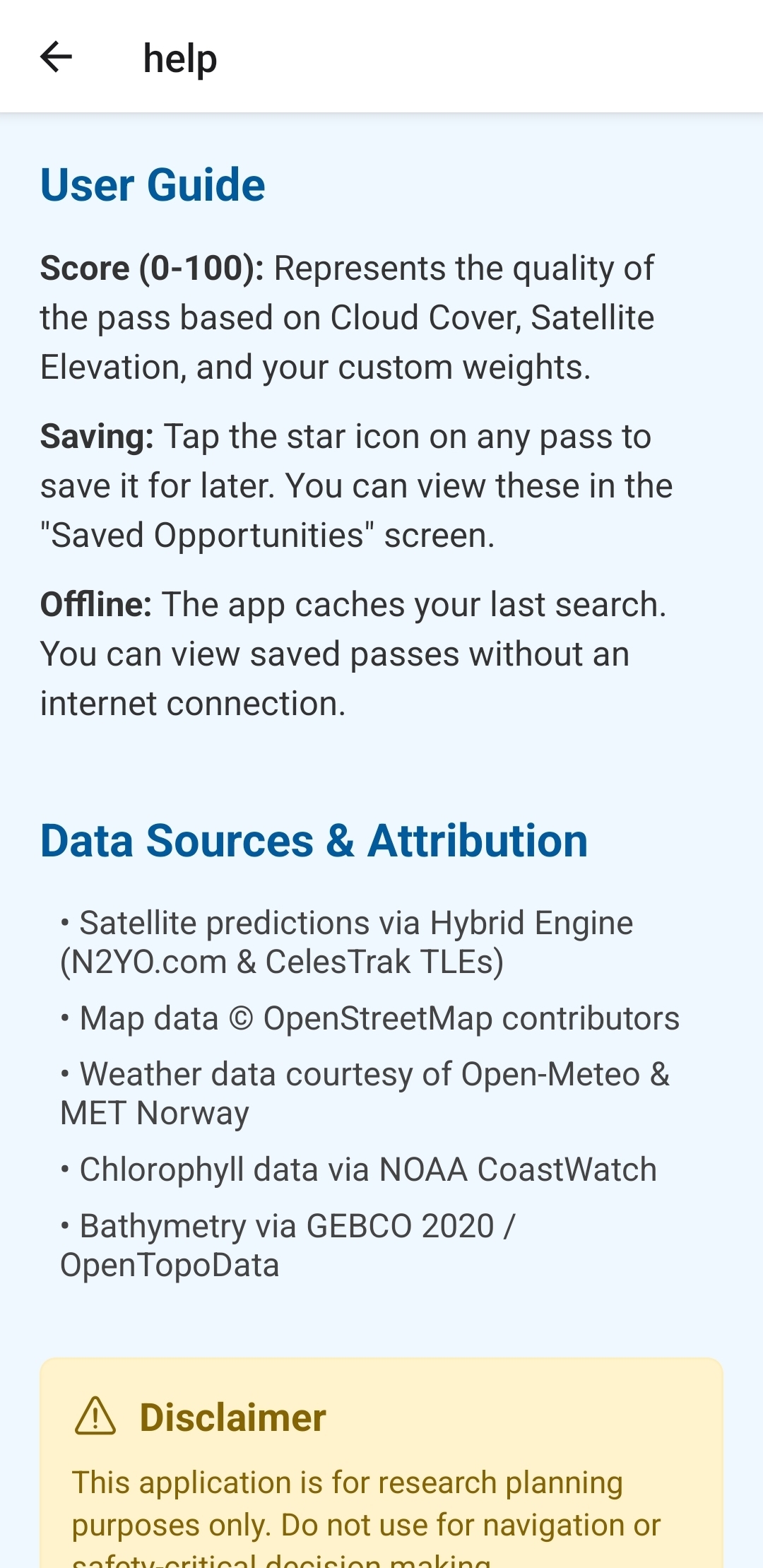
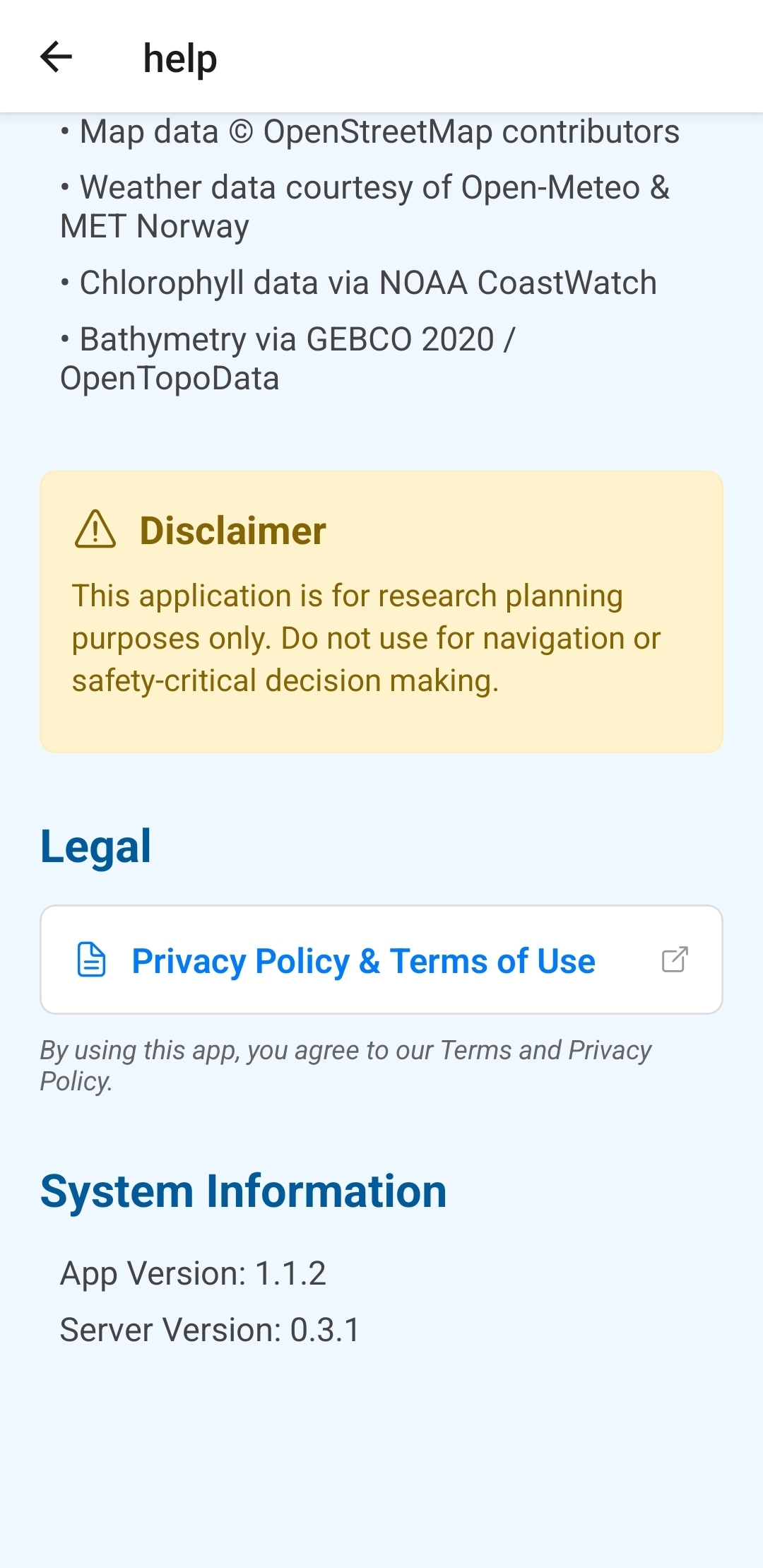
Go to "Help & About" to find your version numbers.

  • App Version: Interface version (e.g., 1.1.2).
  • Server Version: Cloud calculation engine (e.g., 0.3.1).

Legal & Privacy

Access full Terms by tapping the link in the Help screen. This opens documentation on softocean.net.

Help 1 Help 2